Getting to Know Your VIDIZMO Account and Portal
VIDIZMO is an enterprise video and digital media platform that provides a centralized solution for managing, organizing, and delivering media content. This article explains the key concepts of Accounts and Portals in VIDIZMO.
Understanding VIDIZMO Accounts
An Account, or Parent Portal, is a centralized portal for your organization where an administrator can carry out Account-level actions. These actions include setting up different Portals or configuring Enterprise Content Delivery Networks (ECDN).
VIDIZMO creates two types of Accounts:
- Paid Account: A fully functional and licensed Account based on the type of package purchased.
- Trial Account: An Account provided on a limited trial to test drive VIDIZMO features.
Understanding VIDIZMO Portals
Portals are created for the segregation, categorization, and organization of digital media content. For instance, a large-scale enterprise has several departments for whom they can create separate Portals. This assists in segregating content, ensuring that sensitive data (videos, audios, images, documents, etc.) is not accessed by unauthorized users.
VIDIZMO's multi-tenant video platform enables customers to run multiple virtual portals with one deployment instance. You can create multiple autonomous portals under one Primary Account. The number of Portals you can create depends on the VIDIZMO package you have acquired.
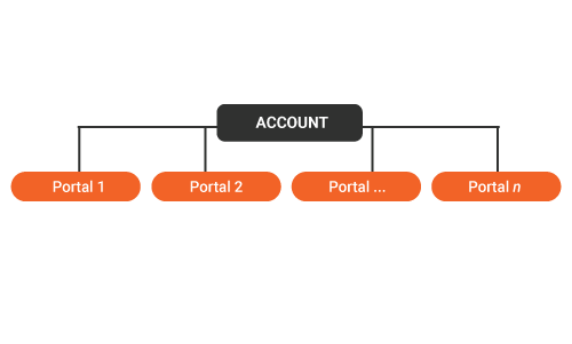
Note: A Portal cannot be segregated into a sub-portal. Certain settings such as ECDN and licensing are governed at the Account level, while each Portal has its own settings for security, membership, and branding.
The Portals created under your Account can be viewed on your homepage under the Portals dropdown, or in the featured portals section. You can choose Portals to feature on your Account's homepage from Portal Settings.
Visit How to Feature a Portal on Homepage to learn about the procedure.
Portal Types
Each Portal has a security type that controls who can access it. VIDIZMO supports the following Portal types:
| Portal Type | Access |
|---|---|
| Public | Anyone can view the portal content without signing in. |
| Internal | Only authenticated users within your account can access the portal. |
| Restricted | Only users explicitly granted membership can access the portal. |
| Hidden | Users must have a direct link to access it. |
| Custom | Define your own combination of access settings based on your requirements. |
The user creating the portal configures the portal type during portal creation.
What a Portal Contains
Each Portal provides the following features for organizing and delivering media content:
- Media Library: The central repository for all uploaded media (videos, audios, images, documents)
- Collections: Curated sets of media items grouped together for a specific purpose
- Playlists: Ordered sequences of media items for continuous playback
- Learning Plans: Structured learning paths with assigned media content for training and education
- Custom Pages: Portal-specific pages that can be customized with widgets and content
Navigating Between Portals
You can switch between Portals using the sidebar navigation. Click the hamburger menu icon, expand the Portals section, and select the Portal you want to access. You can also view all available Portals by selecting All Portals from the sidebar.
Group Permissions and CALs in a Portal
In VIDIZMO, what a user can do in the portal depends on their group permissions and CAL (Client Access License).
- Group Permissions: Users belong to a security group, and each group has specific permissions that determine what actions its members can perform. For example, some groups might have permission to manage content, while others can only view it.
- CAL (Client Access License): Every user is also assigned a CAL, which specifies which features and areas of the portal they can access. CALs work alongside group permissions to ensure users only see and interact with the features they are authorized to use.
Related Articles
- How to Create a Portal
- How to Delete a Portal
- How an Unregistered User Can Join a Portal
- How to Join or Leave a Portal